
Lessons
Topic explanations with worked examples, split into units.
4 min read
A robot does only what its program tells it to do. The robot workshop lets you write that program, run it in a simulation and see each decision the robot makes. Sign-in required.
Create an account to save your progressCreate your account
At a glance
Learners often know what a condition and a loop are but cannot see how they shape robot behaviour. A line-following task makes the idea concrete: the robot reads a sensor value, compares it with a threshold and turns, and the loop repeats this decision many times a second.
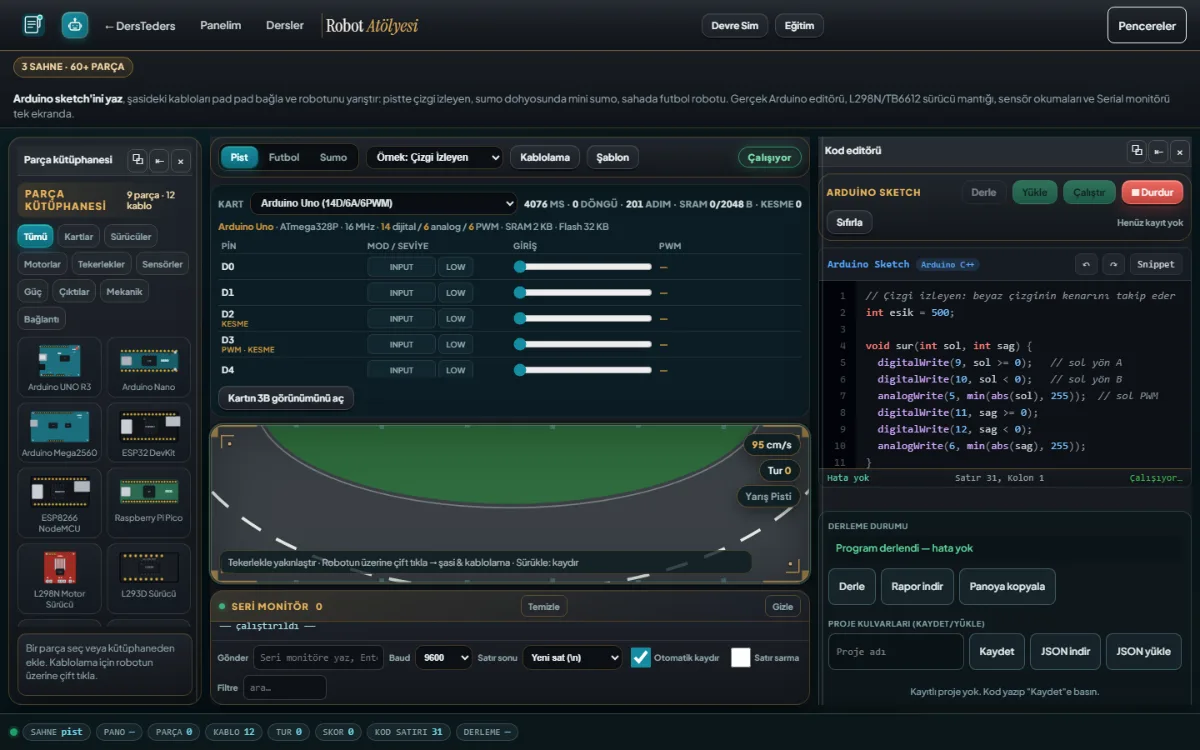
The screenshot shows three modes, Track, Football and Sumo. The example selector opens an example, here line follower. The pin table lists D0 to D4 with input and output modes. The code editor contains an integer threshold named esik and a function named sur that sets motor pins with digitalWrite and analogWrite.
What an account adds to the pages you are reading.
Topic explanations with worked examples, split into units.
Multiple-choice questions with answers you can check.
4 short practice games in maths and science.
424 glossary terms in plain English, and browser simulators.
Step 1. Sign in. The robot workshop is for members.
Step 2. Open the example selector and choose Line Follower.
Step 3. Read the code. Find the esik variable and the sur function, and note which pins control each wheel direction and speed.
Step 4. Press the Compile button. The status area should read that the program compiled with no errors.
Step 5. Press Run button and watch the robot follow the line on the track. Watch the PWM values in the pin table change.
Step 6. Change esik to a different value, compile again and run the robot. Compare how it follows the line.
Step 7. Use the serial monitor, set to 9600 baud, to print a sensor value and check it against your threshold.
Scenario 1, threshold: run the line follower with a high and a low threshold. Note whether the robot drifts off the line, oscillates or stops following.
Scenario 2, football mode: switch to Futbol and use the same sur function with different wheel speeds to make the robot turn toward the ball. Record which speed combination works.
Scenario 3, sumo mode: switch to Sumo and compare how the robot moves straight and turns when the speeds of the two wheels are changed.
Writing a loop without an exit condition. The program then runs forever and must be stopped with Durdur (stop).
Using the wrong pin number. Writing to D9 when the motor driver is connected to D10 sends the command to the wrong wheel.
Choosing a threshold without checking the sensor range. The sensor value and the threshold must be on the same scale.
Ignoring the serial monitor. Printing a variable is the fastest way to see why a condition is not behaving as expected.
The workshop supports computing lessons on algorithms, conditions and loops. Robot speed and direction connect with physics lessons on motion. The threshold comparison uses number sense from mathematics, particularly comparisons and absolute values.
Teachers can use the same example to discuss how a small change in one number alters the behaviour of a whole system.
Work in small steps and keep a record of each version that works. Change one line, compile, run and write down what the robot did. If the robot stops following the line, do not rewrite the whole program. Print one sensor value and find the threshold that separates the two sides of the line. This method keeps debugging focused and makes each change easy to explain.
Keep the track and the program together in your notes. A threshold that works on one track may fail on another because lighting and surface change the sensor reading. Recording the track name next to each setting makes these differences easy to see later.
Yes. Start with the examples, change one value at a time and watch the result.
The logic is the same, but sensor delay, motor differences and floor conditions can change the result, so you may need to adjust the threshold on a real track.
The library lists boards such as Arduino Uno R3, Arduino Nano and Raspberry Pi Pico. Pick a board whose pins match your code.
Yes. The workshop is for members, and projects can be saved to the account.
DersTeders AI
Ask about the part you are stuck on, follow a solution step by step, and revisit the same topic with fresh examples.
Available from your panel. Sign in to open the AI section there.
The library behind these pages holds 5,082 topics and 201,970 practice questions.
Keep learning
Continue with a hands-on project, a browser simulator or a free account.